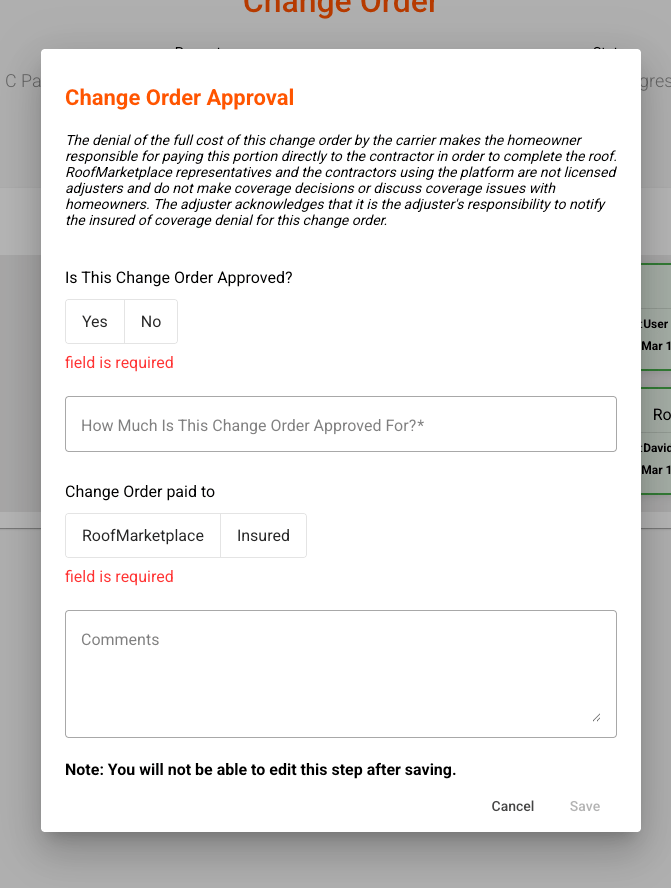
Upon logging into the RoofMarketplace portal, the Dashboard will display three primary sections:
Use the top-level cards to switch between each section and view the respective requests that require action.
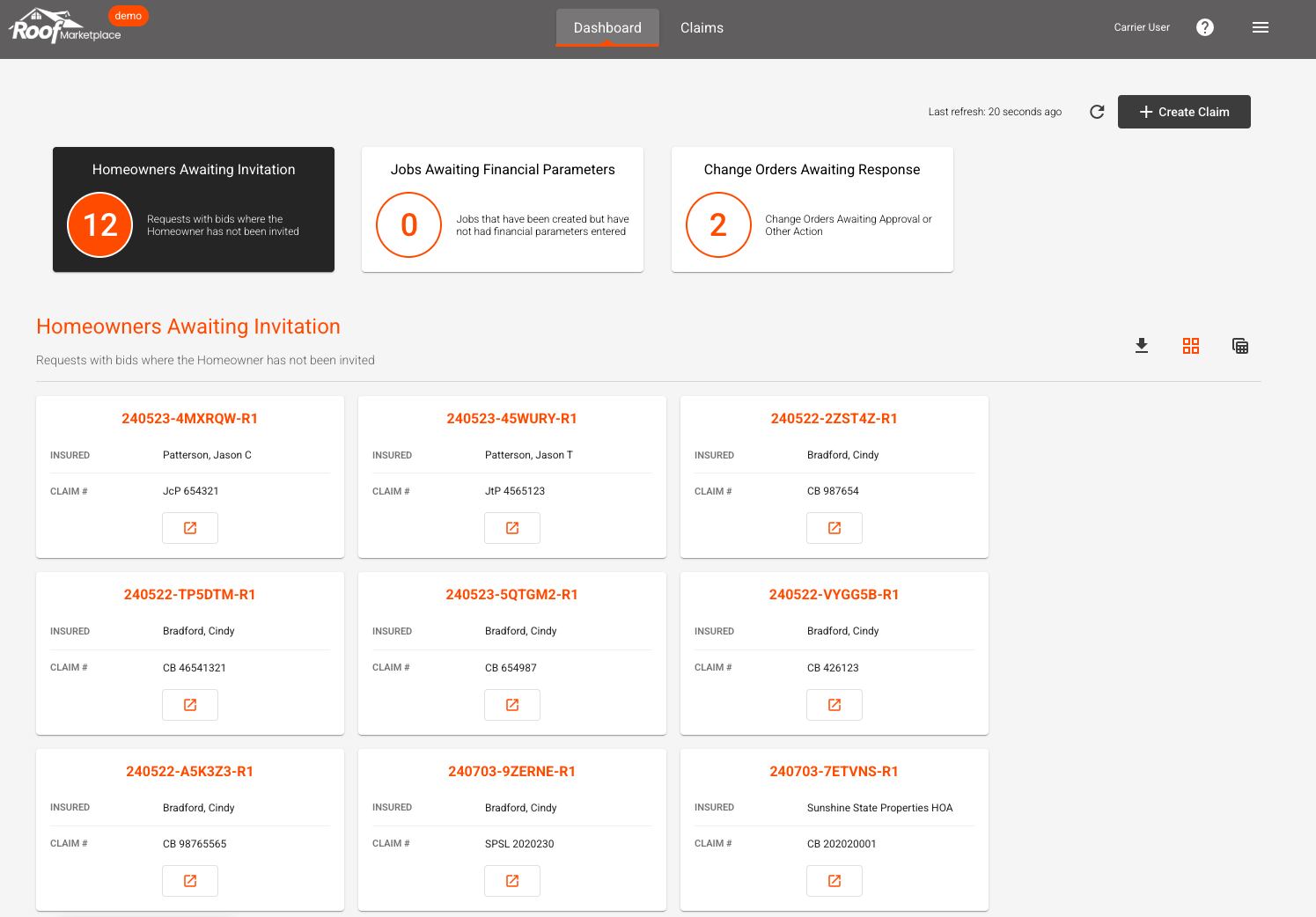
Homeowners Awaiting Invitation
Requests appear here when bids have been gathered and the homeowner needs to be invited to review. Click the  button on the request.
Once viewing the bids, click 'Invite Homeowner.' This will send a link to the homeowner to view their bids directly.
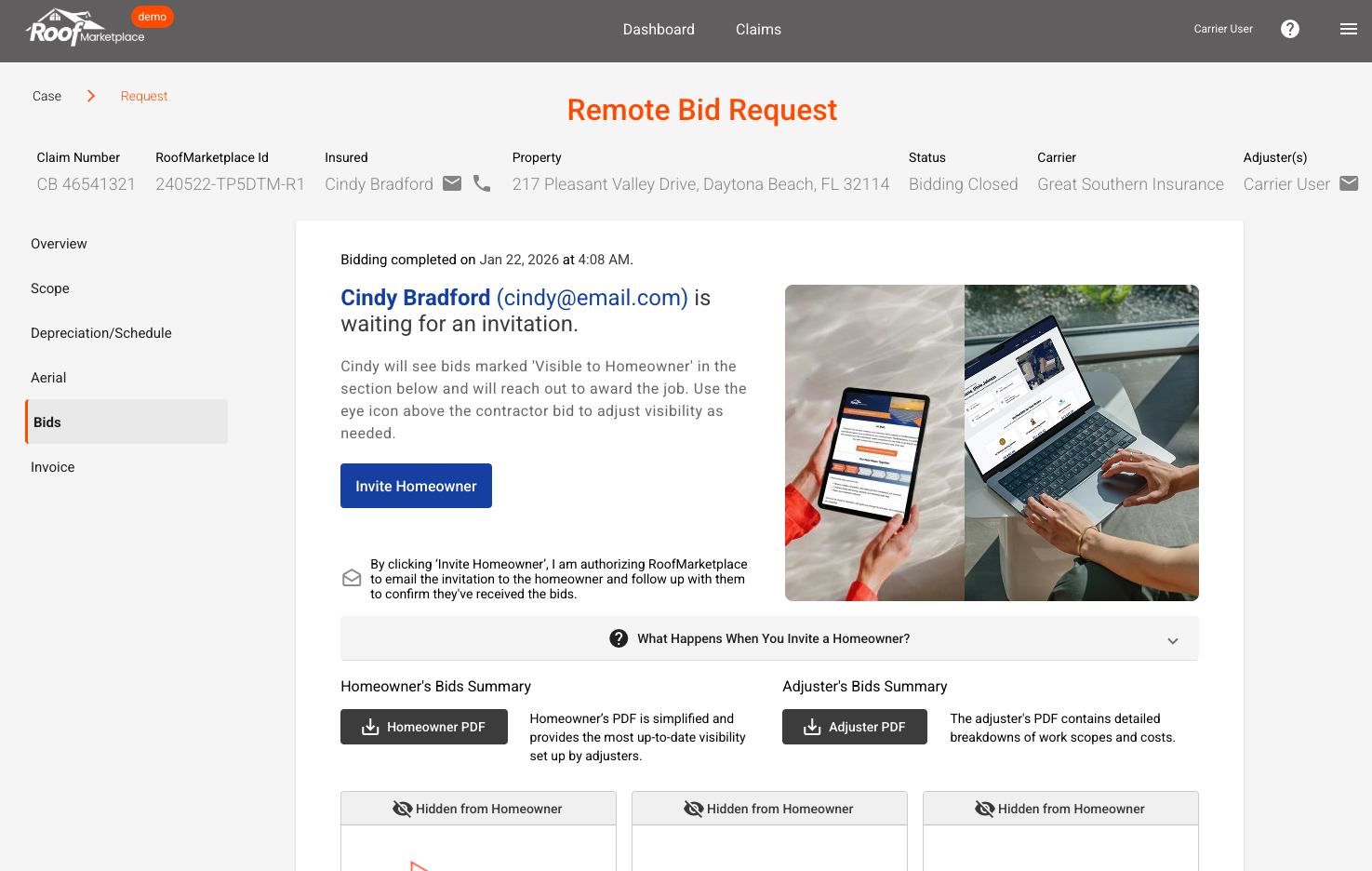
Note: Toggle the eye icon above a bid if you do not want it to be visible to the homeowner.
Jobs Awaiting Financial Parameters
After a job is awarded to a contractor, RoofMarketplace needs specific financial information from the adjuster in order to create and circulate the Work Agreement. To enter Financial Parameters, click the button on the request.
Once viewing the Financial Parameters, please enter the following information as applicable:
-
Work Agreement Type (Voluntary or Option-to-Repair (OTR))
-
Recoverable Depreciation
-
Non-Recoverable Depreciation
-
Non-Covered Ordinance and Law Items
-
Applicable Deductible
-
Any prior payments made for the roof
-
Direction to pay
- Change Order handling
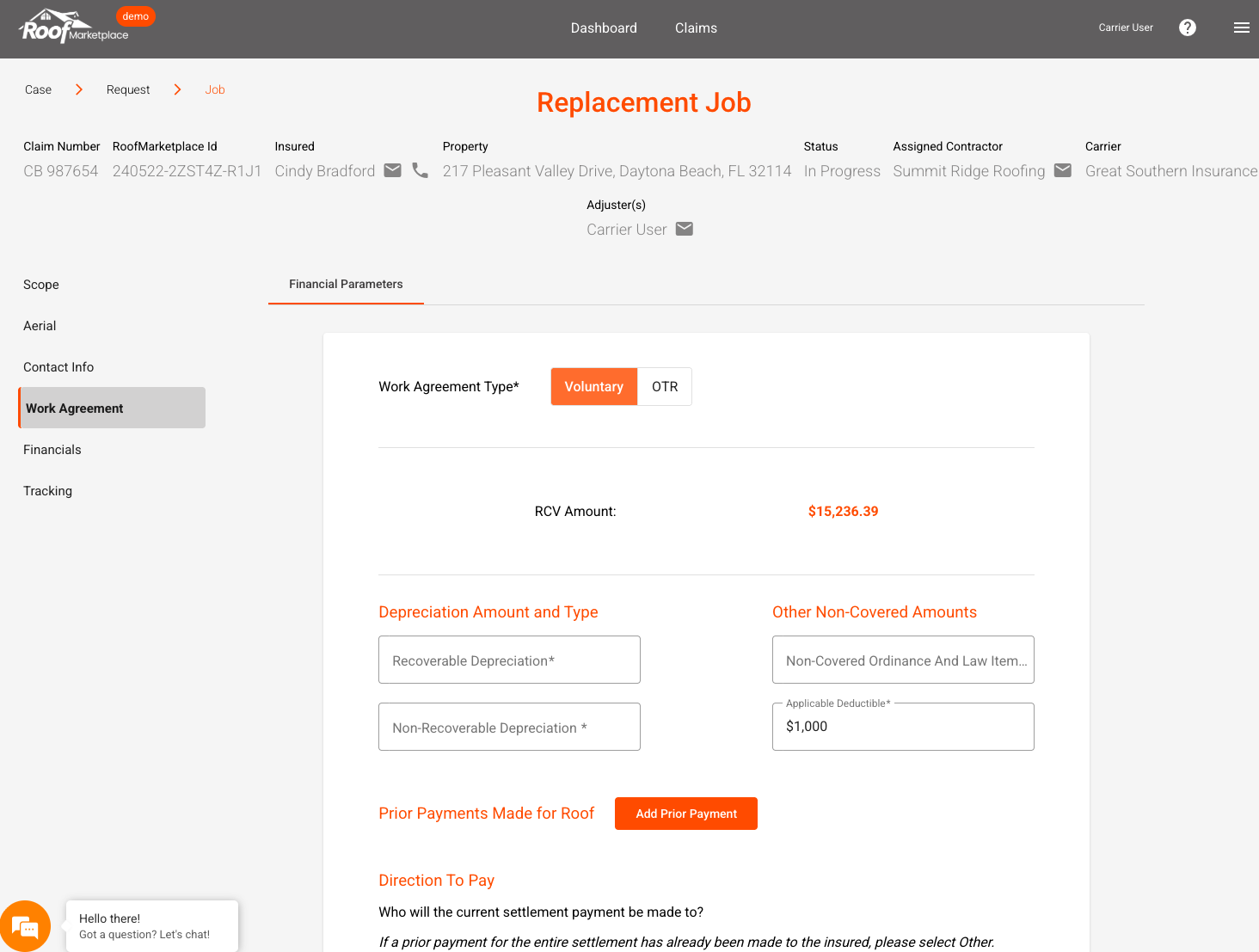
Entering all of this information enables RoofMarketplace to calculate the financial obligation of both the insurance carrier and the homeowner. This information is reflected in the Work Agreement.
Change Orders Awaiting Response
In the event of a needed change order, those will appear here for your review and approval. To review the Change Order, click the button on the request.
Once viewing the Change Order, click the 'Identify Change Order' tile to view the details click the 'Change Order Approval' tile to review the details of the change order.
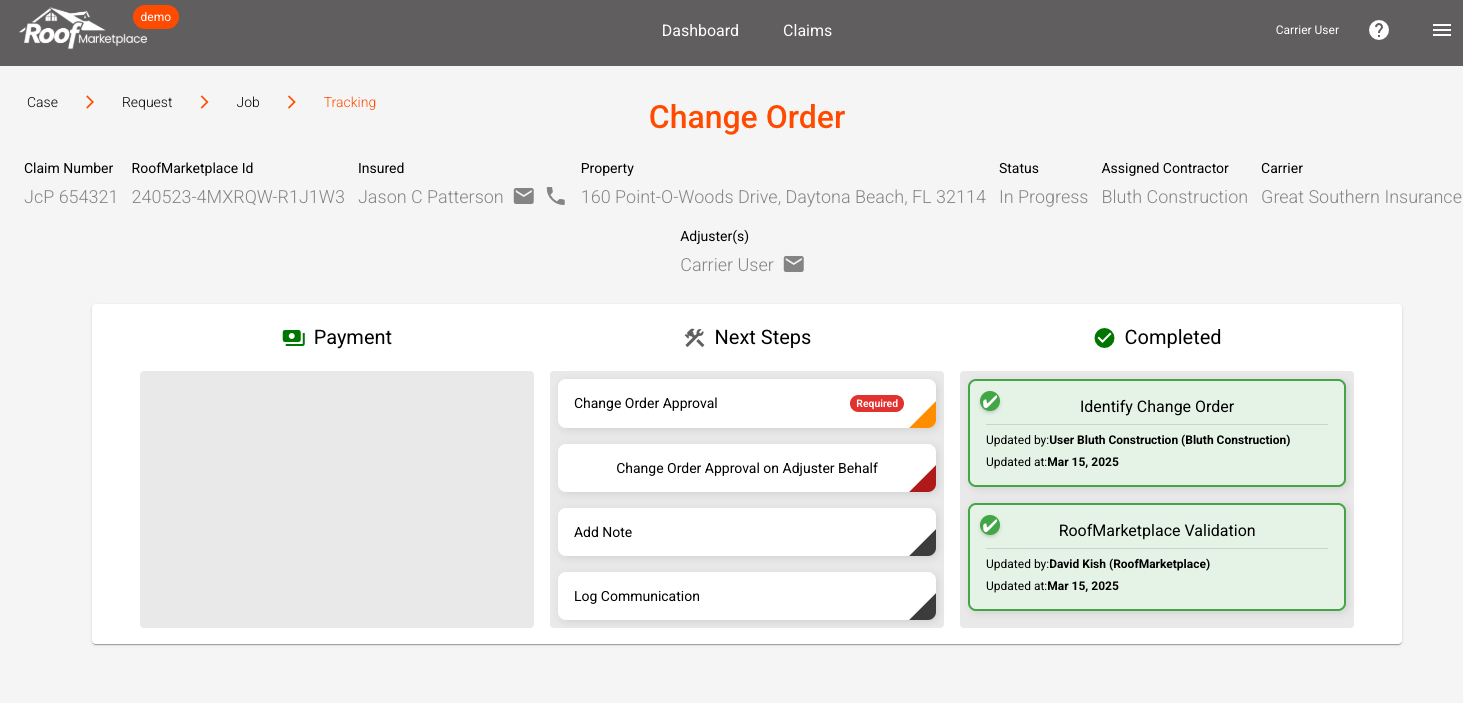
If approved, close that tile and click the 'Change Order Approval' tile enter the following information can click 'Save' to approve:
-
Is this Change Order approved? (Yes or No)
- How much is the Change Order approved for?
- Change Order is paid to (RoofMarketplace or Insured)
- Any applicable comments