
This article outlines the step-by-step process for creating a case and request in the RoofMarketplace platform. There are two primary steps for Adjusters, 1) Create a Case, and 2) Create a Request. Completing these two steps will initiate a bid request with our contractors.
If at any point you need assistance, please do not hesitate to reach out. Our Project Delivery team is available to help:
- help@roofmarketplace.com
- (888) 209-4899
The General Process
- Once you have created the Case and the Request within the RoofMarketplace platform, your request is reviewed by the RoofMarketplace team to ensure accuracy and to address any questions upon review.
- Once the request is validated, RoofMarketplace builds a comprehensive scope of work and our platform sources up to three verified bids from credentialed contractors in the area.
- Once the bids are submitted, the bids are also verified to ensure accuracy prior to releasing the bids to the adjuster and the homeowner.
- The verified bids are released and sent to the adjuster and the homeowner. Both parties can review and compare the bids and contractors based on warranties offered, customer reviews, estimated lead times, materials, and portfolios.
- When a contractor’s bid is selected, the job is awarded to the chosen contractor and RoofMarketplace gathers the necessary information to create and circulate the Work Agreement.
- The homeowner is assigned a dedicated Project Coordinator who supports the project’s progress and answers any questions the adjuster or homeowner may have along the way.
How to Create a Case
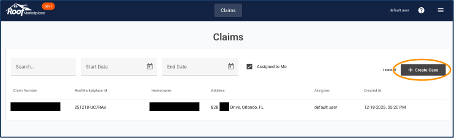
1. Log in to RoofMarketplace at com/app2. Select ‘Create Case’ in the Claims screen.
3. Enter the property address into the ‘Location’ field; select the correct address as it appears from the drop-down list.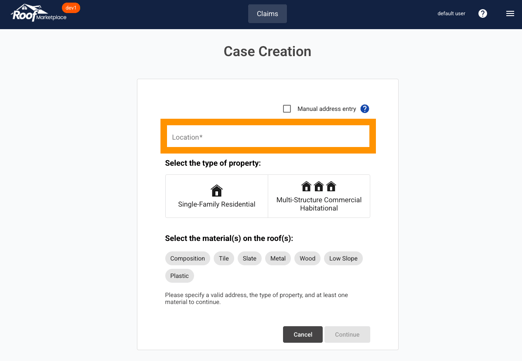
4. Select the type of property and the material(s) on the roof(s).
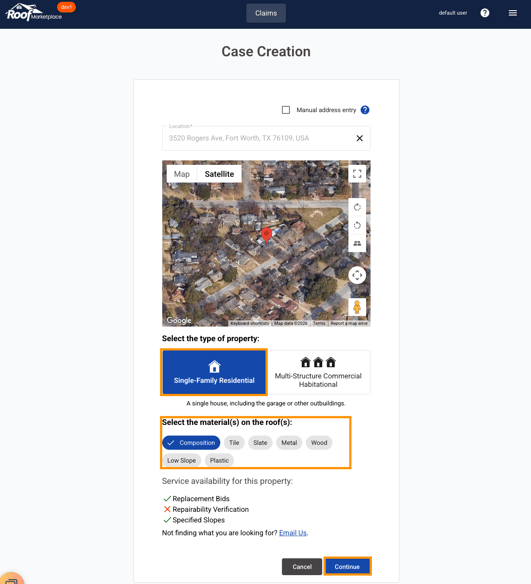
Note: The service availability section will let you know what services are available for this property. A checkmark means the service is available, an X means the service is not currently available.
If the service is available, select continue. If not, please contact our Project Delivery team at help@roofmarketplace.com for assistance.
5. Complete all applicable and required fields on the ‘Case Creation’ screen.
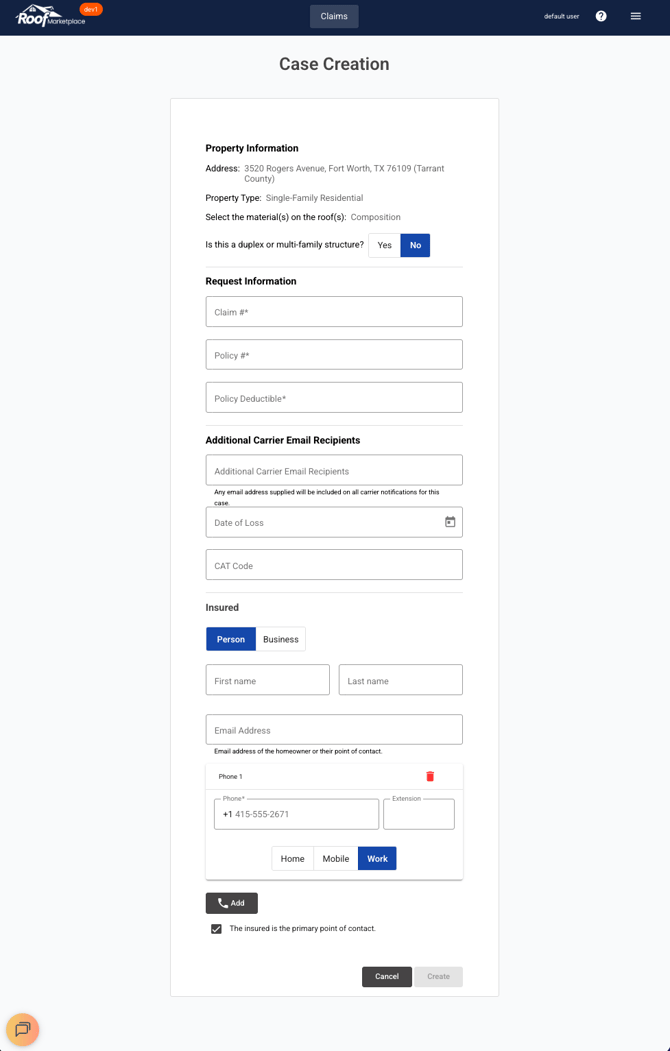
Note: The ‘CAT Code’ field is for any applicable CAT codes your organization has established.
6. Once everything is entered, click ‘Create.’ The Case has now been created and you are one step closer to verified bids from local contractors.
Next up, you will create the Request.
How to Create a Request
1. Select ‘Add Structure’ to begin. Select the Structure type from the drop-down list. If there is more than one structure for the claim, select ‘Add Structure’ again until all applicable structures are reflected.
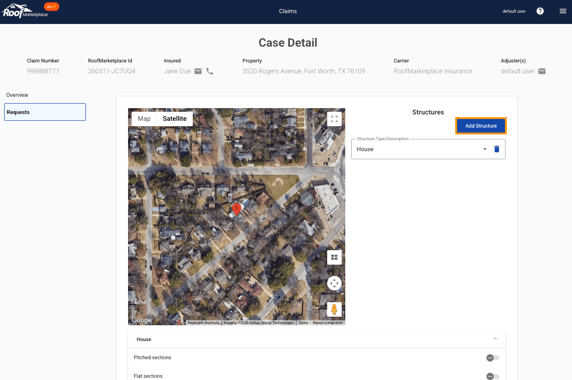
2. Use the RoofMarketplace platform to build the basic scope of the structure(s). Toggle on applicable components and complete the applicable fields within each toggled section.
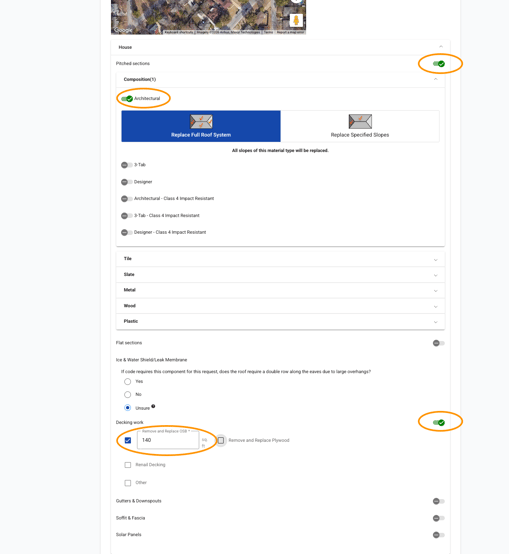
Note: If a claim only needs certain slopes replaced, as opposed to full replacement, select ‘Replace Specified Slopes.’
Using the map within the Specified Slope section, zoom in and place pins on the slopes requiring replacement. Double click to remove a pin.
3. At the bottom of the screen, include any specific notes for bidding contractors, or for RoofMarketplace.
4. Upload any applicable files to aid the bidding process (photos, estimates, etc.).
5. Once everything is entered, click ‘Create.’
How to Create a Request
- Select ‘Add Structure’ to begin.
Select the Structure type from the drop-down list. If there is more than one structure for the claim, select ‘Add Structure’ again until all applicable structures are reflected.
- Use the RoofMarketplace platform to build the basic scope of the structure(s). Toggle on applicable components and complete the applicable fields within each toggled section.
Note: If a claim only needs certain slopes replaced, as opposed to full replacement, select ‘Replace Specified Slopes.’
Using the map within the Specified Slope section, zoom in and place pins on the slopes requiring replacement. Double click to remove a pin. - At the bottom of the screen, include any specific notes for bidding contractors, or for RoofMarketplace.
- Upload any applicable files to aid the bidding process (photos, estimates, etc.).
- Once everything is entered, click ‘Create.’