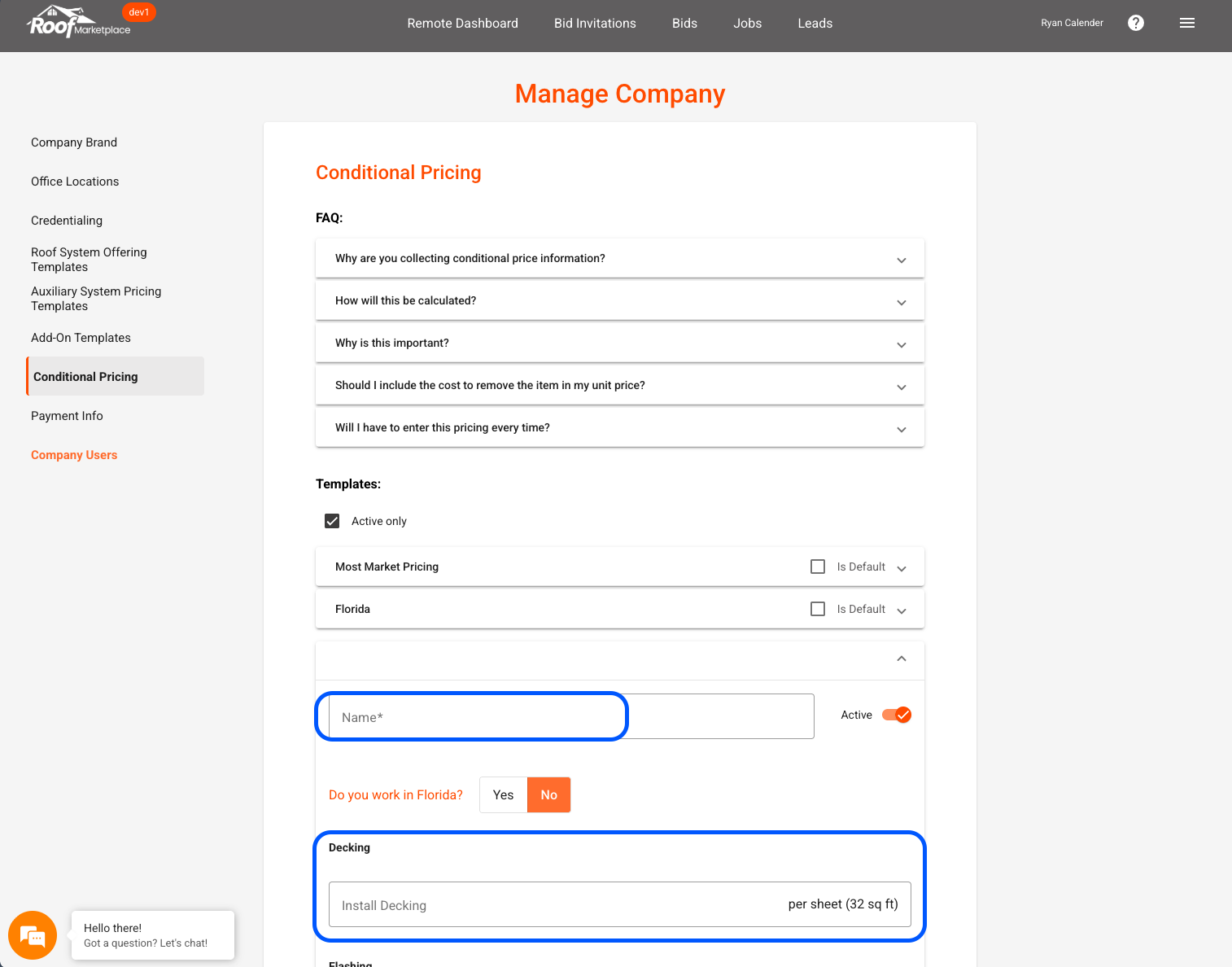
Conditional Pricing is a feature that allows contractors to specify pricing within bid templates. The prices collected are for building code-related roof components. These unit prices will be used to calculate how much of the bid total is for a building code-required component not previously installed on the roof.
The conditional prices are required to bid; however, the templates can be filled out once and re-used for fast entry on all your bids. Multiple Conditional Pricing templates can be created for the different regions that you serve if need be. Remember to keep your pricing updated should costs change.
Step-by-Step
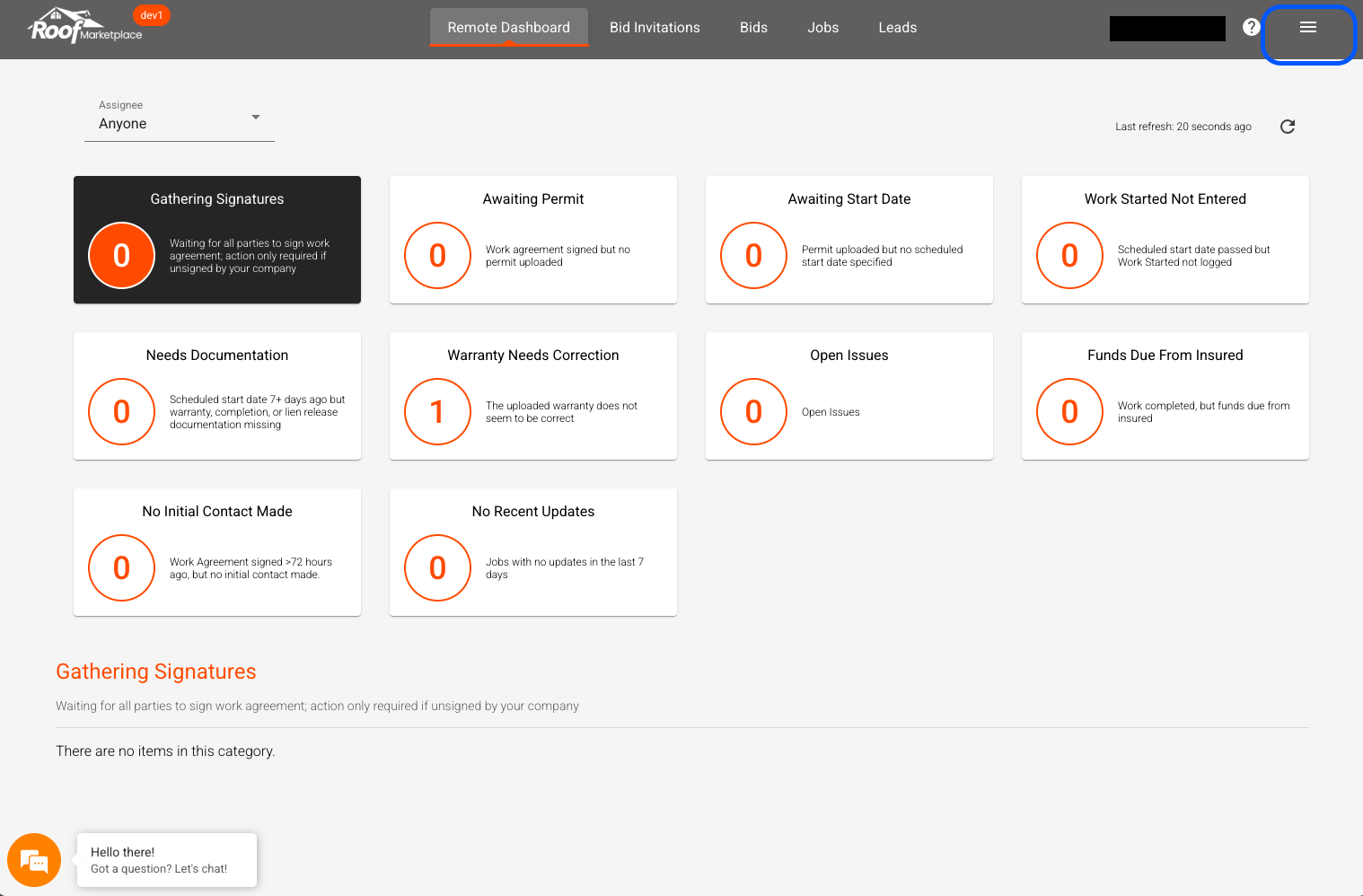
1. Log in to the RoofMarketplace portal, click the menu icon in the top right corner.
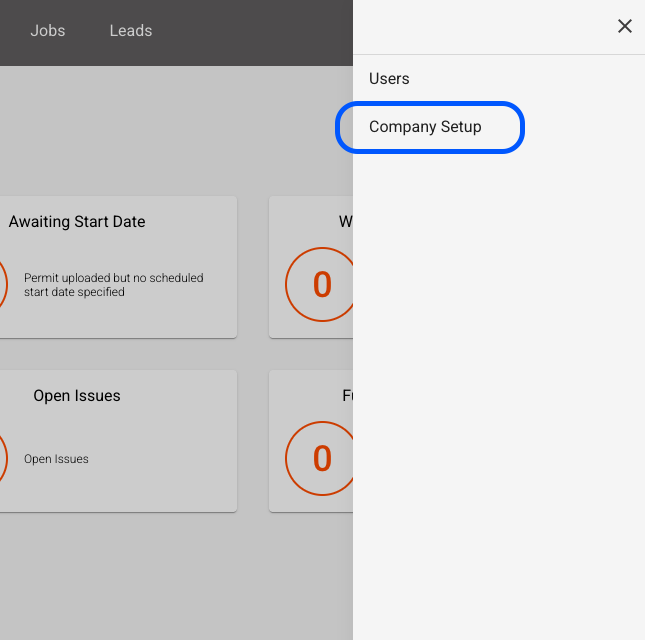
2. Click 'Company Setup'
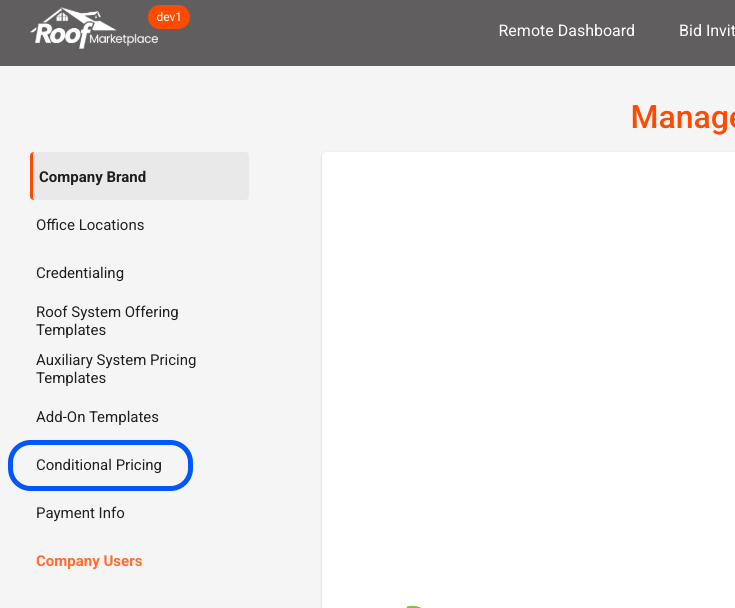
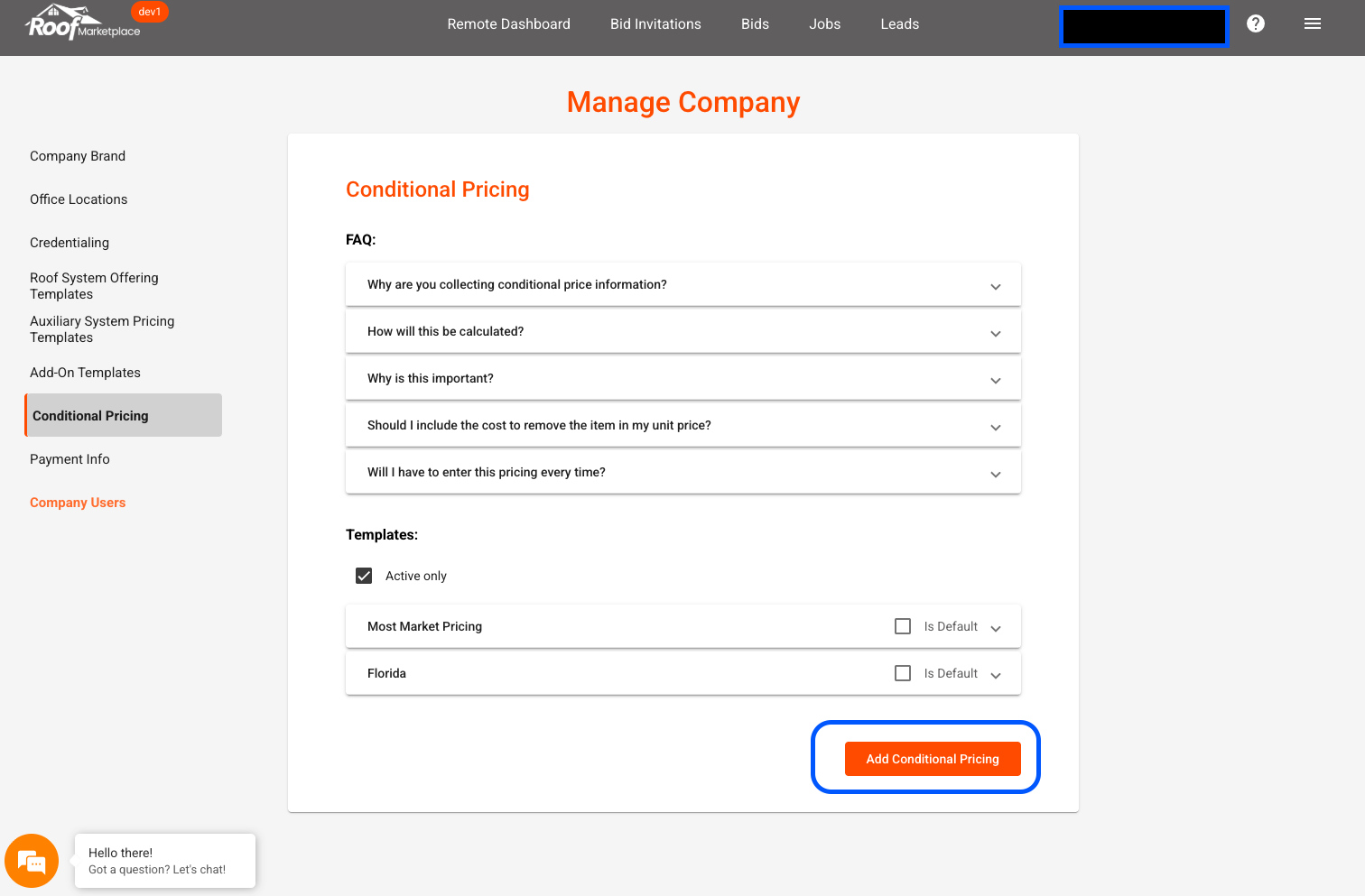
3. On the left-hand side, click 'Conditional Pricing.'
4. Click 'Add Conditional Pricing' at the bottom.
5. Review the different components and enter your pricing accordingly. When finished, click 'Save.' Tip: Contractors often set up Conditional Pricing Templates by state or geographic area.